
Translate - Chat Translator
Rubi SoftProductivity
4.69.00 Reviews
- Version
- 2.4.1
- Installs
- 100.00K
- Age Rating
- Everyone
Screenshots

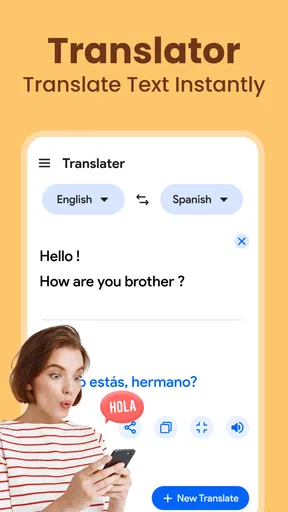
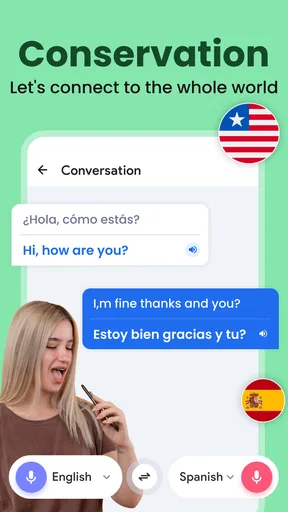
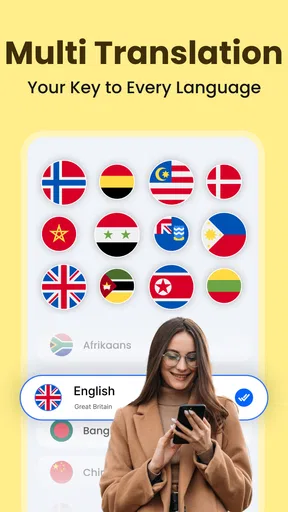
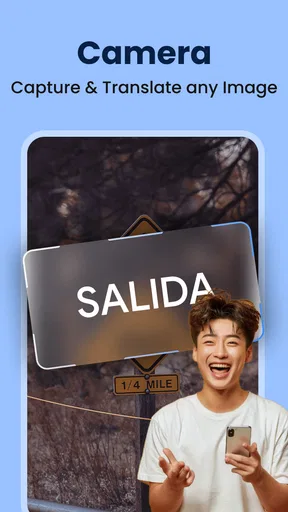
Our Review of Translate - Chat Translator
 Analysis by Appyee
Translating a short message is easy until the words are trapped in a photograph, spoken too quickly, or written in a language I cannot identify. That is the recurring problem Translate - Chat Translator tries to remove. Instead of making me copy text between several tools, it brings photo, voice, and written translation into one productivity app. I found that approach most useful when speed mattered more than polishing every sentence.
My experience with Translate - Chat Translator was less about replacing a full language-learning system and more about reducing small interruptions during the day. A menu, message, label, or spoken request can become understandable without forcing me to type everything manually. That convenience is the app’s central strength, although the quality of the result still depends on the source material and the language involved.
Why this translator is useful in ordinary situations
The app comes from Rubi Soft and sits in the productivity category rather than presenting itself as a course or reference library. That distinction matters. I would open it when I need an answer now, not when I want lessons, vocabulary practice, grammar explanations, or a long-term study plan.
Its most practical idea is giving three input routes a shared place. Typed text is the familiar option, but photos and voice remove two common obstacles: text that is difficult to enter and speech that is difficult to understand. In everyday use, that can save more time than a long list of advanced settings. I do not have to retype a paragraph from a sign or guess how to spell an unfamiliar phrase before asking for help.
A realistic example is travelling through a place where I cannot read the local language. I can use the photo route for a notice or menu, then switch to typed text when I want to ask a more specific question. If someone answers aloud, voice translation gives me another way to follow the exchange. The benefit is not that every translation becomes perfect; it is that the conversation has fewer dead ends.
The same pattern works at home. Imagine receiving a message from a customer, seller, neighbour, or online contact in another language. Copying the text is simple when the message is selectable, but screenshots and photographed documents are more awkward. Having image translation available in the same utility makes that kind of task feel less like a technical chore.
Starting without turning translation into a project
The first useful setup is deliberately simple: keep the app ready for the kind of input I use most often, then test it with a harmless sentence before relying on it for something important. If I expect to translate conversations, I would try voice input first. If I regularly deal with printed material, I would begin with a clear photograph containing large, well-lit text.
This small test is worthwhile because it reveals the app’s real workflow before I am standing in a busy station or trying to answer someone quickly. It also helps me notice whether I am more comfortable speaking, typing, or taking a picture. The best route is not always the one that sounds most impressive; it is the one that creates the fewest corrections for my particular situation.
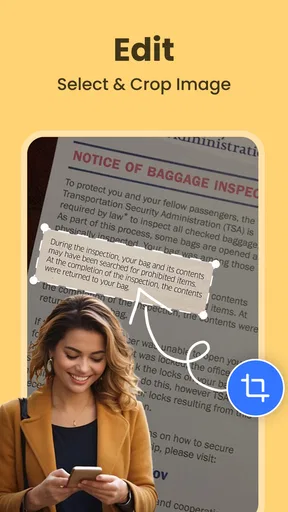
For photos, I get better results by framing only the relevant section instead of photographing an entire crowded page. Straight lines, good lighting, and readable spacing give the translator a cleaner starting point. This is a useful habit with any image translator, but it matters especially when I need a quick result and do not have time to edit the picture repeatedly.
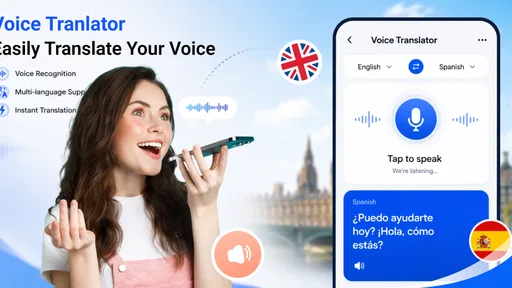
Voice translation benefits from the opposite kind of preparation: short phrases and a quiet moment. I would speak in complete, uncomplicated sentences rather than combining several requests at once. That makes it easier to spot a misunderstanding and repeat only the troublesome part. In a real conversation, this is often faster than trusting one long recording and discovering later that the meaning changed.
Typed translation remains valuable for checking a phrase before sending it. I prefer to write the idea plainly, avoid slang when accuracy matters, and read the result once before using it in a formal message. A translator can help me communicate, but it cannot always know whether I intended a friendly, formal, humorous, or technical tone.
Where the three input methods save the most time
Photo translation is the clearest time-saver when the original text is physically present. Menus, packaging, posters, notices, and paperwork can take too long to transcribe by hand. I would use this mode for understanding the general meaning first, then inspect the original whenever a small detail could affect a decision.
That last step is important. A quick translation is excellent for deciding which menu item to investigate or understanding the subject of a notice. It is less suitable as the only basis for a legal, medical, financial, or safety-critical choice. In those cases, I would treat the output as a first pass and seek a qualified human explanation.
Voice translation is most helpful when my hands are occupied or when the other person cannot comfortably type. It can make a short exchange possible in a shop, hotel, or casual meeting. I would keep the conversation in small turns, because short exchanges make it easier to compare what was said with the response and correct the direction if needed.
Text input is still the dependable fallback. It is the right choice when the source is already digital, when the room is noisy, or when I need to revise a sentence before translating it. One useful workflow is to use voice for the first understanding, then type the final question or reply. That combination balances speed with control instead of forcing one mode to do everything.
These modes also answer a practical question many people have: does the app suit someone who only occasionally translates? I think it does, particularly if the occasional tasks involve mixed formats. Someone who only translates carefully edited documents may prefer a dedicated document tool, while someone who encounters a mixture of photos, speech, and short messages can gain more from this compact approach.
How it compares with the usual alternatives
The usual alternative is to use a familiar general translator for typed text and then find separate tools for camera recognition or speech. That arrangement can work, but it adds switching, copying, and repeated decisions about which app should handle each input. Translate - Chat Translator is more appealing when the main goal is keeping those small jobs together.
On the other hand, a dedicated camera translator may be better for someone who spends most of the day scanning documents and wants a workflow built around images. A specialized conversation tool may also be preferable for frequent, extended dialogue. I would not choose this app simply because it has several input types; I would choose it because those input types match the interruptions I actually face.
It also should not be confused with a language-learning app. I did not approach it expecting pronunciation coaching, exercises, progress tracking, or explanations of why a sentence is constructed a certain way. Its value is immediate comprehension and communication. For studying, a learning platform is the stronger companion; for getting unstuck, this app is the more direct tool.
Small habits that make the results more dependable
My first recommendation is to translate the smallest useful piece of content. A whole page may contain headings, fragments, names, and decorative text that confuse the result. Selecting the sentence or photographing the relevant area gives the app a clearer job and makes the output easier to judge.
My second recommendation is to use back-checking for important messages. After translating a sentence into another language, I would translate the result back or simplify the original and compare the general meaning. This is not a guarantee of perfection, but it can expose an accidental change in names, quantities, negations, or requests.
The third is to separate understanding from sending. I can use the app to understand an incoming message quickly, but I would pause before sending a translated reply that carries emotional or professional weight. A literal result may be understandable while still sounding abrupt or unnatural. When the relationship matters, I would shorten the sentence and choose plain wording rather than trying to preserve every expression.
A fourth useful habit is to keep a visual translation in context. If a sign contains arrows, warnings, headings, or nearby symbols, the translated words alone may not explain what action is expected. I would look at the original image after reading the result. The app can remove the language barrier, but the surrounding layout still carries meaning.
What may create friction
The biggest limitation is shared by nearly every automatic translator: a plausible sentence is not automatically a precise sentence. Image quality, accents, background noise, unusual names, and ambiguous wording can all affect the result. I appreciate the convenience, but I would never treat a fast translation as proof that every nuance survived.
Voice input introduces another layer of uncertainty. A speaker may talk too quickly, use regional expressions, or be interrupted by surrounding noise. The best response is not necessarily to abandon the feature; it is to slow the exchange down, use shorter phrases, and confirm the important point with typed text when possible.
Photo input has its own trade-off. It removes typing, but it asks me to provide a usable image. Glare, curved packaging, tiny print, and mixed layouts can make the process less immediate than the store summary suggests. Taking a second, better-framed picture is often worthwhile, but someone who expects flawless recognition from every snapshot may find the experience frustrating.
There is also a cost consideration. The app is free to start, while in-app purchases range from around four dollars to around twenty dollars per item. That means I can try the basic experience before deciding whether paid options fit my needs, but I would still check the purchase screen carefully before committing. For occasional travel or one-off messages, a paid upgrade may be difficult to justify; for repeated use, the time saved may matter more than the price.
The app is marked suitable for Everyone, which makes its straightforward purpose easy to understand for a broad audience. Still, suitability does not remove the need for judgement. A child, older relative, or inexperienced traveller may need help checking translations in sensitive situations. The interface can simplify the act of asking, but a person still has to decide whether the answer makes sense.
Who should use it and who should skip it
I would recommend it to travellers, multilingual households, customer-facing workers, online shoppers dealing with foreign listings, and anyone who regularly receives images or voice messages in another language. It is especially useful for people who dislike switching between separate camera, speech, and text tools.
I would be more cautious recommending it to translators, editors, or professionals who need consistent terminology across large projects. They usually need document management, glossaries, revision control, and a way to preserve a carefully chosen style. This compact productivity app is aimed at removing everyday friction, not managing a professional translation pipeline.
I would also skip it if my main goal were learning a language deeply. It may help me understand a phrase, but quick understanding is not the same as remembering vocabulary or mastering grammar. In that situation, I would pair a translator with a structured learning resource rather than expecting one utility to cover both jobs.
Version, availability, and overall value
Translate - Chat Translator was released on July 2, 2024, and the current version is 2.4.1. It supports devices running Android 7.0 or later, so it remains accessible to people using older Android hardware. That is useful for a spare travel phone or a family device that is not running the newest software.
The app has reached over one hundred thousand installs and holds a 4.6 average from around four hundred fifty ratings. Those figures suggest that its focused promise resonates with many users, while the relatively compact review count also reminds me to judge it by my own workflow rather than assuming it will suit every language situation.
My final view is positive, with sensible boundaries. Rubi Soft has made a practical utility for the moments when translation is inconvenient rather than intellectually difficult. The real win is the reduction in steps: speak instead of type, photograph instead of transcribe, and keep short translation tasks in one place.
I would recommend trying it if your recurring problem is getting quick meaning from mixed input. Just use clear photos, short voice phrases, and a second check for anything important. If you need lessons, polished professional localization, or guaranteed precision in sensitive documents, another specialist tool will be a better choice. For everyday interruptions, though, Translate - Chat Translator earns its place as a handy free starting point, provided I remember that convenience is an aid to judgement, not a replacement for it.
Verdict
Strengths of Translate - Chat Translator
- Supports text translation across many languages.
- Useful for quick conversations while traveling.
- Simple interface makes common tools easy to find.
- Voice input can speed up hands-free translations.
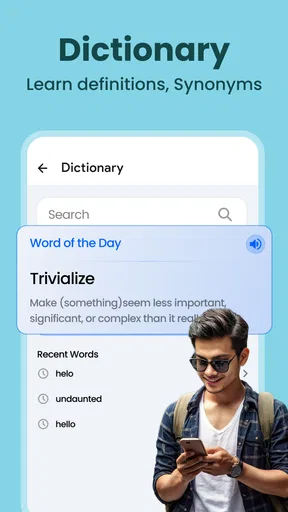
- Conversation history helps revisit recent translations.
Limitations of Translate - Chat Translator
- Translation quality may vary with slang or complex sentences.
- Some features may require an internet connection.
- Voice recognition can struggle in noisy environments.
- Advanced tools may be limited behind ads or subscriptions.
- Privacy details should be checked before entering sensitive text.
Similar Picks in This Category
View All
Google Calendar
Google LLC4.6

Google Drive
Google LLC4.3

Google Assistant
Google LLC3.9

Microsoft OneDrive
Microsoft Corporation4.6

Samsung Calendar
Samsung Electronics Co., Ltd.4.1

Microsoft OneNote: Save Notes
Microsoft Corporation4.6
Frequently Asked Questions
What is Translate - Chat Translator used for?
Translate - Chat Translator is designed to help users communicate across language barriers through quick text translations. It can be useful for conversations, travel, messaging, studying, and understanding foreign-language content. The app focuses on making translations convenient inside a chat-style interface, so users can enter or exchange messages without constantly switching between separate translation tools.
Does Translate - Chat Translator support voice or camera translation?
The available tools can vary depending on the app version, device, and subscription plan. Users should check the feature list shown on the Google Play Store or App Store before downloading if voice input, spoken translations, image translation, or camera scanning are important to them. Text translation is generally the core experience, while additional modes may not be available in every version.
Is Translate - Chat Translator free to download and use?
The application may be available as a free download, but some features can be restricted by advertisements, usage limits, or optional in-app purchases. Before starting a translation session, review the pricing details, trial conditions, and subscription terms displayed in the store or inside the app. This is especially important if you only need occasional translations and do not want an automatic renewal.
How accurate are the translations in Translate - Chat Translator?
Translation quality is usually suitable for everyday phrases, casual conversations, travel needs, and general comprehension, but it should not be treated as a perfect replacement for a professional translator. Accuracy can depend on the language pair, sentence structure, spelling, slang, and context. For legal, medical, business, or other sensitive content, users should verify the result with a qualified person.
Does Translate - Chat Translator require an internet connection?
An internet connection may be required for many translation requests because language processing is often performed through online services. Availability and offline support can differ by language and app version, so travelers should test the application before relying on it abroad. Users should also consider mobile data usage, roaming charges, and privacy settings when translating personal or confidential conversations.
